
Online multiplayer overview
Meccha Chameleon is built for party sessions — 2–10 players online with public matchmaking or private friend lobbies.
Every player in a lobby needs their own purchased copy on Steam (Windows PC). There is no free guest pass or split-screen couch co-op — multiplayer is online only through the in-game server browser.
If you searched "meccha chameleon how to play with friends", "how to join friends in meccha chameleon", or "meccha chameleon multiplayer" — this guide covers hosting, joining, public rooms, and what crossplay actually means for this game.
Matches assign Hiders and Seekers automatically. Host picks the map (official stage or Workshop) before pressing Play. A short lobby countdown (~15 seconds) runs before the round starts.
- 2–10 players per lobby — host sets the cap when creating a server
- Public matchmaking — quick join random lobbies from the main menu
- Private servers — password-protected rooms your group reuses
- Proximity voice — hear nearby players only, not the whole map
- Full controls & lobby UI keys →
Crossplay — PC Steam only
MECCHA CHAMELEON does not support crossplay with consoles or mobile.
As of June 2026 the game runs only on Windows PC through Steam. There is no PS5, Xbox, Nintendo Switch, iOS, or Android version — so "crossplay" in the traditional sense does not apply. Everyone in your group must be on PC with Steam installed.
Searches like "meccha chameleon crossplay" usually mean "can my friends on other platforms join?" The answer is no — buy the Steam version and play together on PC. Steam Deck counts as PC (same Steam library).
Cross-region servers can still appear in the browser (e.g. a US host with an EU friend) — that is region networking, not cross-platform play. Pick the closest region when hosting to reduce lag.
- PC (Steam) ↔ PC (Steam) — yes, this is the only supported combo
- PC ↔ PS5 / Xbox / Switch — not available
- PC ↔ iOS / Android — not available; no official mobile app
- Steam Deck — same Steam copy, portable PC
What everyone needs before joining
- Own MECCHA CHAMELEON on Steam (App ID 4704690) — one license per player
- Windows 10/11 64-bit PC with a stable internet connection
- Same game version — let Steam update before hosting (patch mismatches can block joins)
- Microphone optional but recommended for proximity voice and party coordination
- For Workshop custom maps — all players subscribe to the same Workshop item on Steam
How to host a server for friends (step by step)
One person in your group hosts; everyone else joins through the server browser.
- 1. Launch MECCHA CHAMELEON from Steam and reach the main menu
- 2. Choose Create Server (host flow from the Start menu)
- 3. Set a memorable Server Name — friends will search this exact string (case-sensitive)
- 4. Set a Password — share it in Discord, Steam chat, or voice
- 5. Select Max Players (2–10) — 4–8 is ideal for most friend groups
- 6. Pick Region — choose the closest region to the host for lowest ping
- 7. Select a lobby Tag (e.g. "Everyone welcome") — friends must match the same tag when searching
- 8. Press Create Server — you enter the pre-match lobby
- 9. Pick the map — official stage or a subscribed Workshop map
- 10. Press Play — wait for the ~15 second lobby timer; friends should join before the round locks
- Keep the game open on the lobby screen until all friends connect — closing the client removes your listing
How to join a friend's server
Friends use Find Server — not a separate Steam invite button.

- 1. Launch the game and go to the main menu
- 2. Choose Find Server (also labeled Search Server on some builds)
- 3. Filter for Private servers if the browser separates public/private
- 4. Type the host's Server Name exactly — ALL CAPS vs lowercase matters
- 5. Select the same Region the host chose
- 6. Select the same lobby Tag the host picked
- 7. Press Search — the host's room should appear in the list
- 8. Click Join and enter the Password the host shared
- 9. Wait a few seconds to load into the pre-match lobby — you should see the host and other friends
- If name search returns nothing, ask the host to confirm the server is still open and the name spelling
Public matchmaking
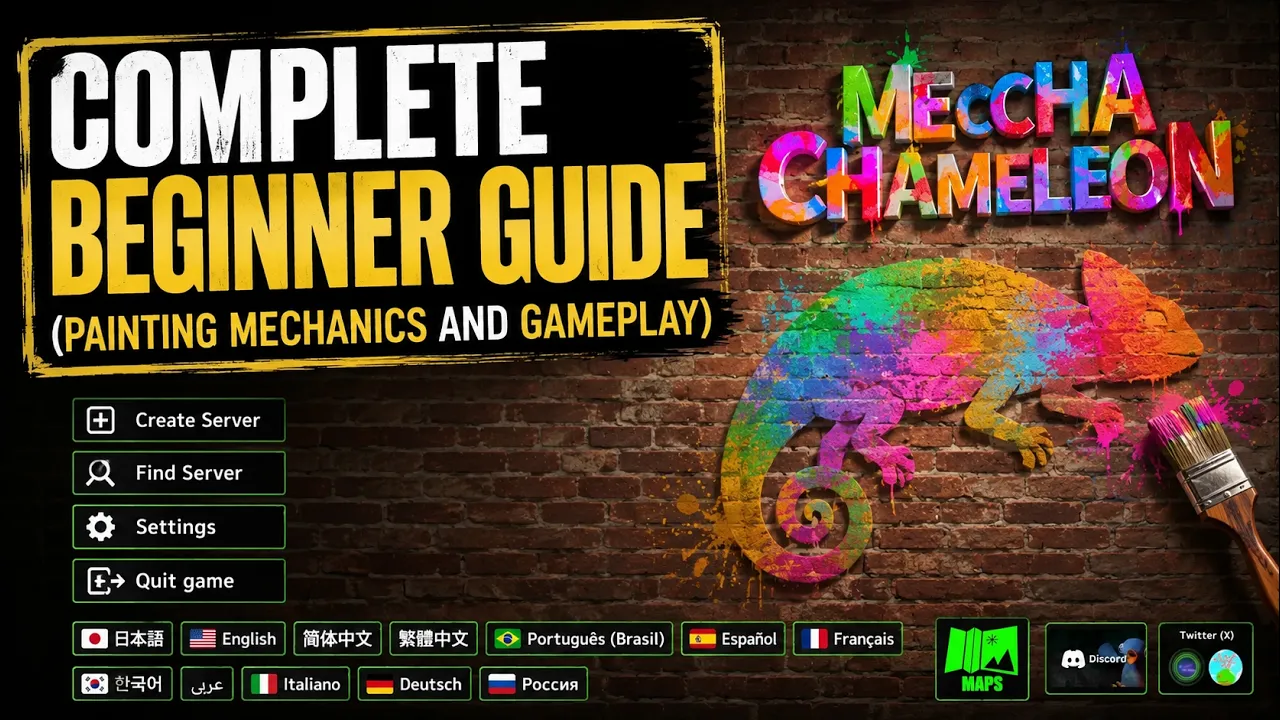
Public lobbies are the fastest way to learn both Hider and Seeker roles without organizing a group. From the main menu, browse or quick-join open servers — pick a region close to you for lower ping.
Dedicated servers and player-hosted public rooms both appear in the browser. Sort by region and player count; joining a lobby with 3–8 active players usually means shorter wait times.
- Best for learning maps and paint timing against strangers
- Ideal size: 4–8 players for balanced hide spots
- Rejoin a different lobby if you hit desync or high ping after a patch
- New players: run 2–3 Seeker rounds first to learn layouts before hard Hider spots
- Fallback with friends: if private name search fails, both parties can join the same empty public server (0 players) and wait together
Server browser — region, tags & troubleshooting

The server browser is how all multiplayer works — there is no separate "Steam friends only" queue. Region selection affects ping: always pick the region nearest the host. Lobby tags (such as "Everyone welcome") must match between host and joiner or the room may not appear in filtered results.
After major patches, server search occasionally breaks for a few hours. If Find Server by name fails, try browsing public lobbies, restarting the game, or verifying game files in Steam.
- Server name is case-sensitive — "PARTY" and "party" are different searches
- Host must stay in the lobby — alt-tabbing is fine, force-quitting removes the server
- Password required for private rooms — public rooms may have no password
- Workshop maps — host selects the stage; all players need the Workshop item subscribed
- Player count in browser updates live — refresh search if a friend just joined
Pre-match lobby — maps & countdown

After friends join, the host picks the map from the pre-match screen. Official maps (Hide-and-Seek Mansion, Indoor Country, Sewer, Backrooms) need no extra downloads. Workshop stages require every player to subscribe on Steam first.
When the host presses Play, a short countdown (about 15 seconds) starts before roles assign. Late joiners may need to wait for the next round if the timer already expired.
- Rotate official maps each session so the group learns different color palettes
- Test new Workshop maps in a private lobby before going public
- Agree house rules before starting — e.g. no hiding inside geometry, whistle taunts OK
- Official map hiding spots →
- Workshop & custom maps →
Proximity voice chat
Built-in proximity voice means only nearby players hear you — distant Hiders and Seekers do not. This creates bait opportunities (whistle, fake footsteps) and makes party sessions chaotic in the best way.
Adjust voice volume or mute incoming audio in Settings if public lobbies get too loud. Streamers often push game audio higher than voice for clip clarity.
- Hiders: stay silent when Seekers pass — voice gives away position
- Seekers: pair up and call out sweep zones in duo-Seeker lobbies
- Spectators after elimination: free camera + whistle taunts (agree rules with friends first)
- Voice bait — talk loudly as a decoy while a teammate hides nearby
Party session tips
- Rotate who hosts each night — host bandwidth affects lobby stability
- Share server name + password in a pinned Discord message for quick rejoins
- Run 4–8 player lobbies for the funniest paint fails and Seeker chaos
- Alternate Hider/Seeker rounds so everyone practices both roles
- Use private lobbies for Workshop testing; use public rooms to learn new maps
- After patches, restart Steam and verify files if friends cannot see your server
- Streamer viewer lobbies →
Multiplayer troubleshooting
- Friend cannot find server — re-check exact name spelling, region, tag, and that host is still in lobby
- Search Server not working — browse public lobbies with 0 players as a temporary workaround
- High ping — host should recreate the server in a closer region
- Workshop map missing — all players subscribe to the same Steam Workshop item
- Desync or crash mid-round — leave and rejoin a fresh lobby after verifying Steam updated
- Crossplay confusion — console/mobile friends cannot join; only PC Steam copies work
Related guides
How to Play
Rules, round flow, prep phase, price, win conditions, and first-match advice.
Read guide →Games Like MECCHA CHAMELEON
Prop Hunt, Garry's Mod, and other paint hide-and-seek alternatives on Steam.
Read guide →Controls & Keybinds
Full MECCHA CHAMELEON controls: F paint menu, R pose menu, WASD, eyedropper, metallic/roughness sliders, Seeker tagging, and rebinding.
Read guide →Hider Basics
Sample colors, pick spots, paint your body, pose, and survive the timer.
Read guide →Unofficial fan guide — not affiliated with lemorion_1224 or Valve. Controls and map names may change after patches; verify in-game.